Linking URLs in dashboards
URL linking allows you to link the dashboard with valid web URLs.
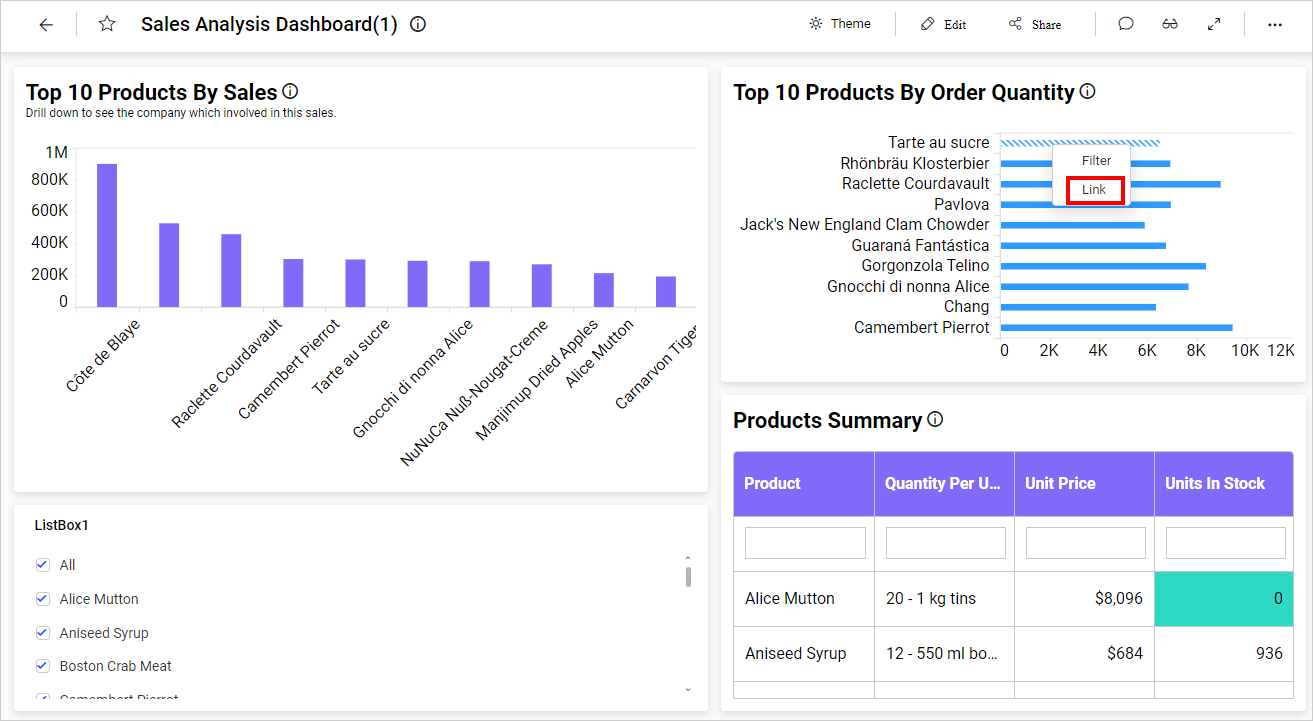
You can link URLs to a visualization widget by enabling the Enable Link property.
The Enable Link option is available in the Properties tab of the widgets.
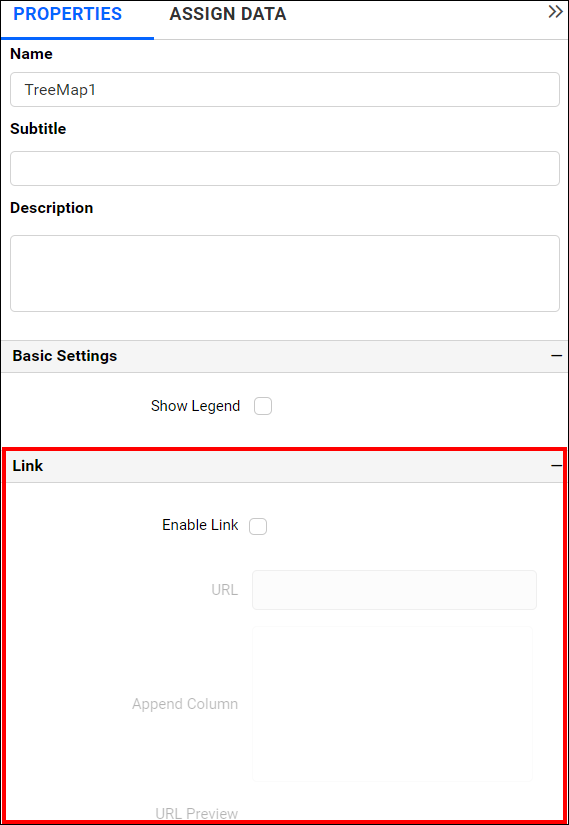
By default, the Enable Link property will remain unchecked.
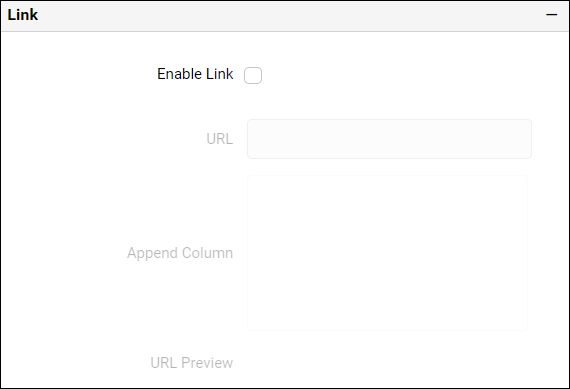
To enable linking, select the Enable Link checkbox.
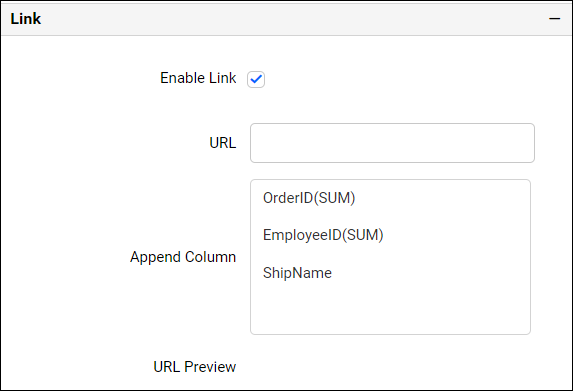
Enter the Web URL in the URL text box. If you click on the column names listed in the Append Column name list, it will be appended to the URL entered in the URL text box.
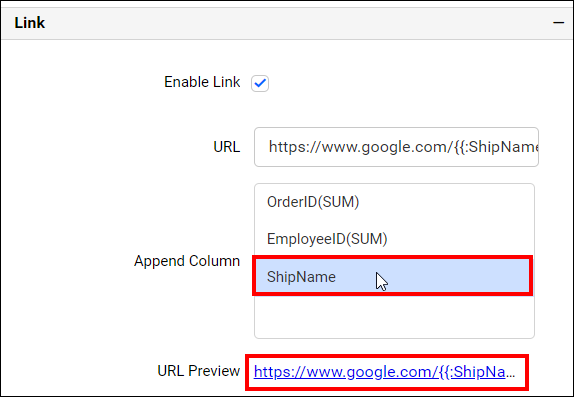
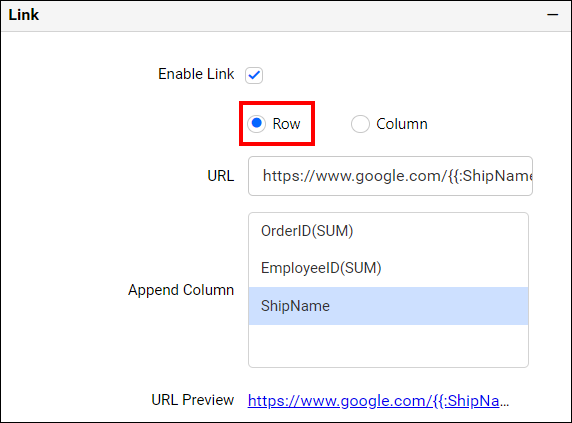
For the Grid widget, you can get a URL based on Row and Column.
Row
Enter the Web URL in the URL text box. If you click on the column names listed in the Append Column name list, it will be appended to the URL entered in the URL text box.
You can preview the linked URL using the URL preview option. If you click the preview URL link, it will be opened in a browser.
Column
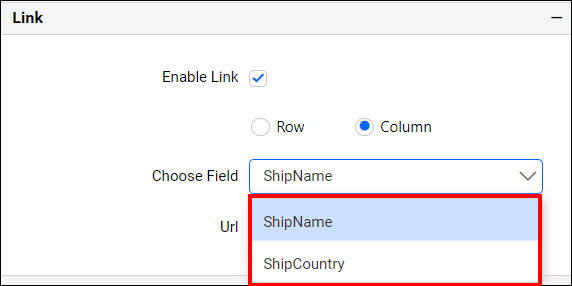
You can select the column.
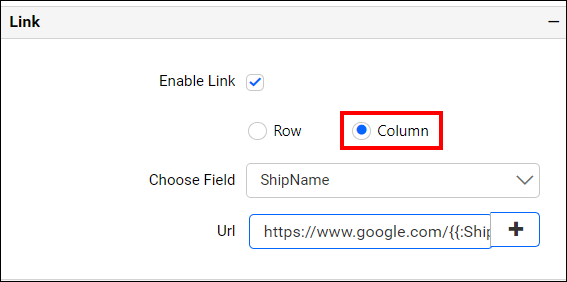
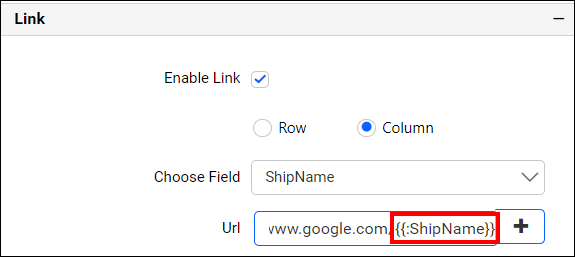
Choose the field from the Choose Field property listed in the combo box.
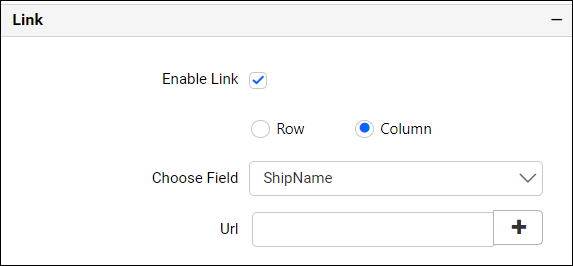
Add the web Url in the URL text box.
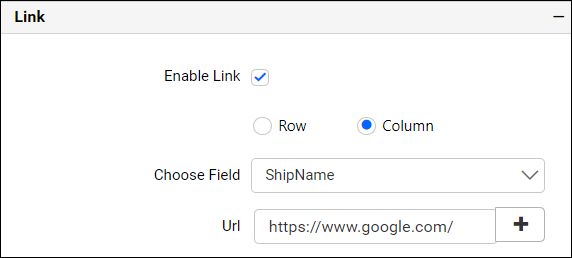
Click the Add button shown below to add the field.
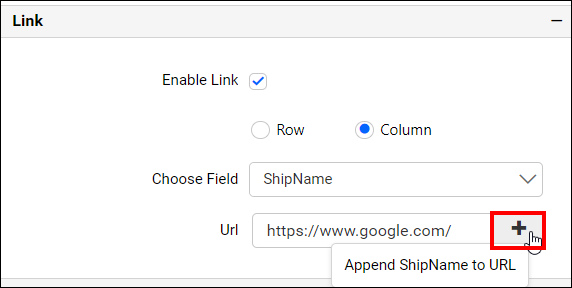
Now, the field will be added with the URL.
Dashboard Parameter support in URL Linking
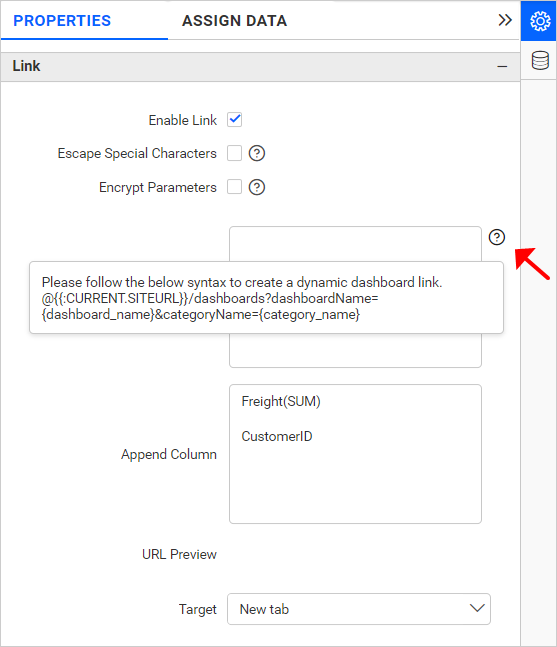
URL Linking allows you to use both the Dashboard Parameter and Default Parameter. You can create a dynamic link based on the current domain, dashboard, and category by referring to the info icon placed at the right side of the URL text box.
Syntax : @{{:CURRENT.SITEURL}}/dashboards?dashboardName={dashboard_name}&categoryName={category_name}
@{{:CURRENT.SITEURL}}- ThisDefault parameterwill automatically populate the URL of the current site.{dashboard_name}- Specify the name of the dashboard you want to link.{category_name}- Specify the name of the category under which the dashboard has been published.
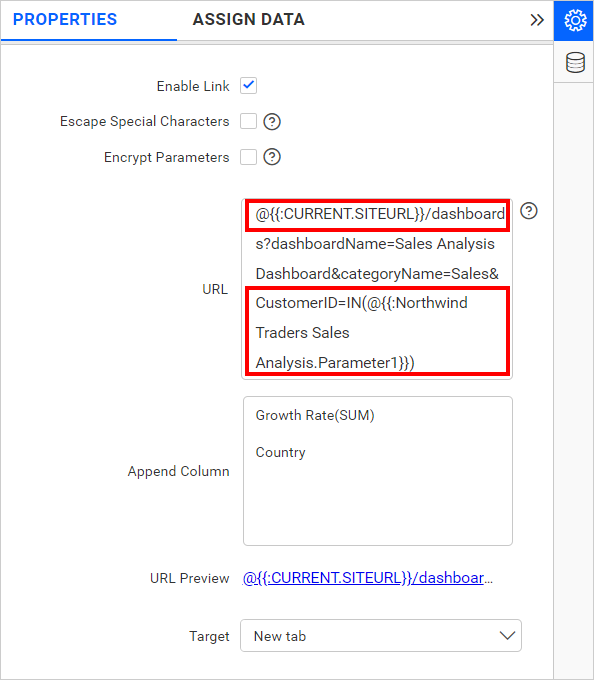
For Example, the dynamic URL can be created as @{{:CURRENT.SITEURL}}/dashboards?dashboardName=Sales Analysis Dashboard&categoryName=Sales.
Refer the URL info as shown in following image.
Based on the above syntax, create the dynamic linking URL using the Default parameter and Dashboard Parameter as shown in the image.
Advanced Url Linking
The linked url’s target can be changed with the help of a drop down as shown in the following image.
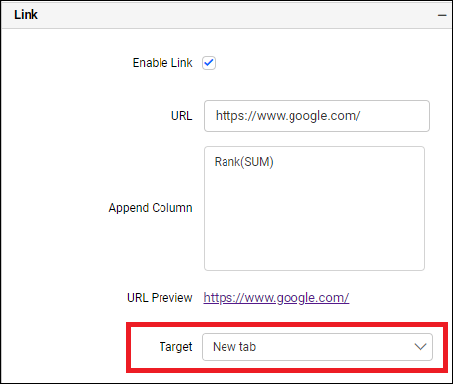
The target can be changed from the New tab, Same page, Current frame, Parent frame, Pop up and New Window.
| Target | Description |
| New tab | Opens the linked document in a new tab or window. |
| Same page | Opens the linked document in the full body of the window in which it is clicked. |
| Current frame | Opens the linked document in the same iframe as it was clicked. |
| Parent frame | Opens the linked document in the parent iframe from which the current frame is generated. |
Pop up
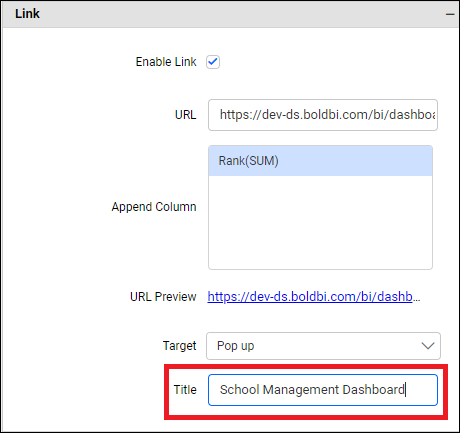
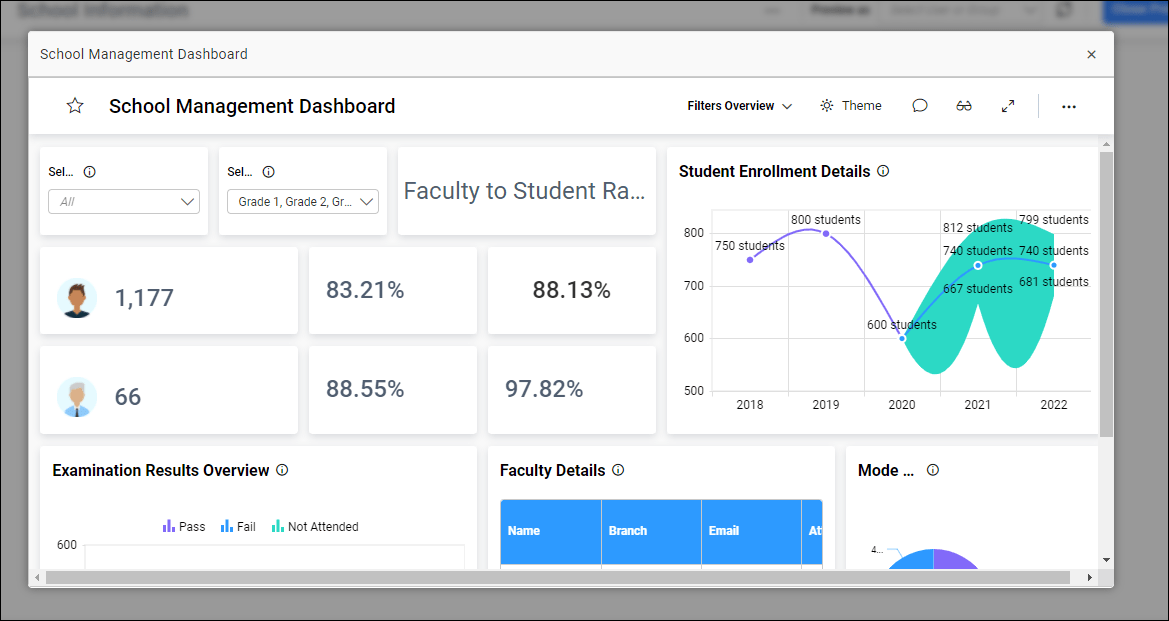
This target type helps you to open the linked document inside a pop-up window. The title of the same pop-up window can also be set in the input box provided as shown in the following image.
When you open the linked document, it will appear as shown in the following image.
New Window
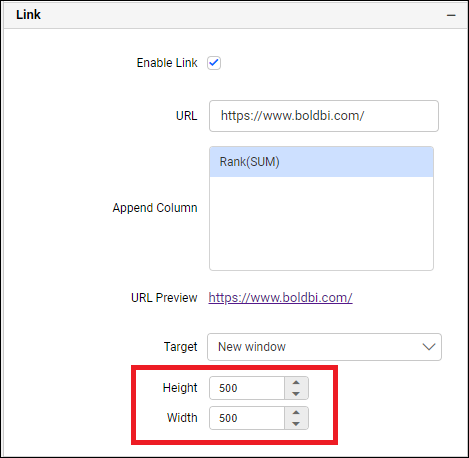
This target type helps you to open the linked document in a separate browser window. The specific Height and Width of the required window can be updated as shown in the following image.
When you open the linked document with the above dimensions, it will appear as shown in the following image.

Encryption query Parameter
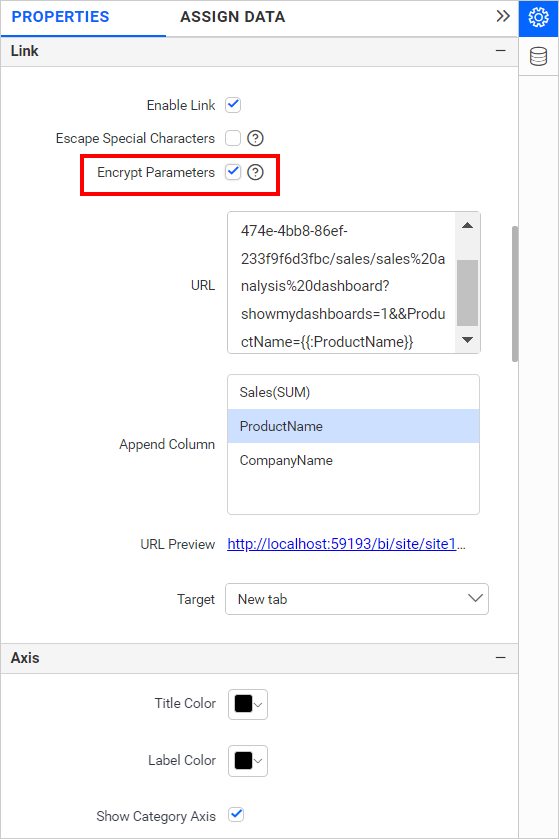
This property, Encrypt Parameters, allows you to encrypt the filter parameter that will be used in the URL text area under the Link category in the Properties tab of the widget.
To enable this property, select the Encrypt Parameters checkbox as shown in the following image.
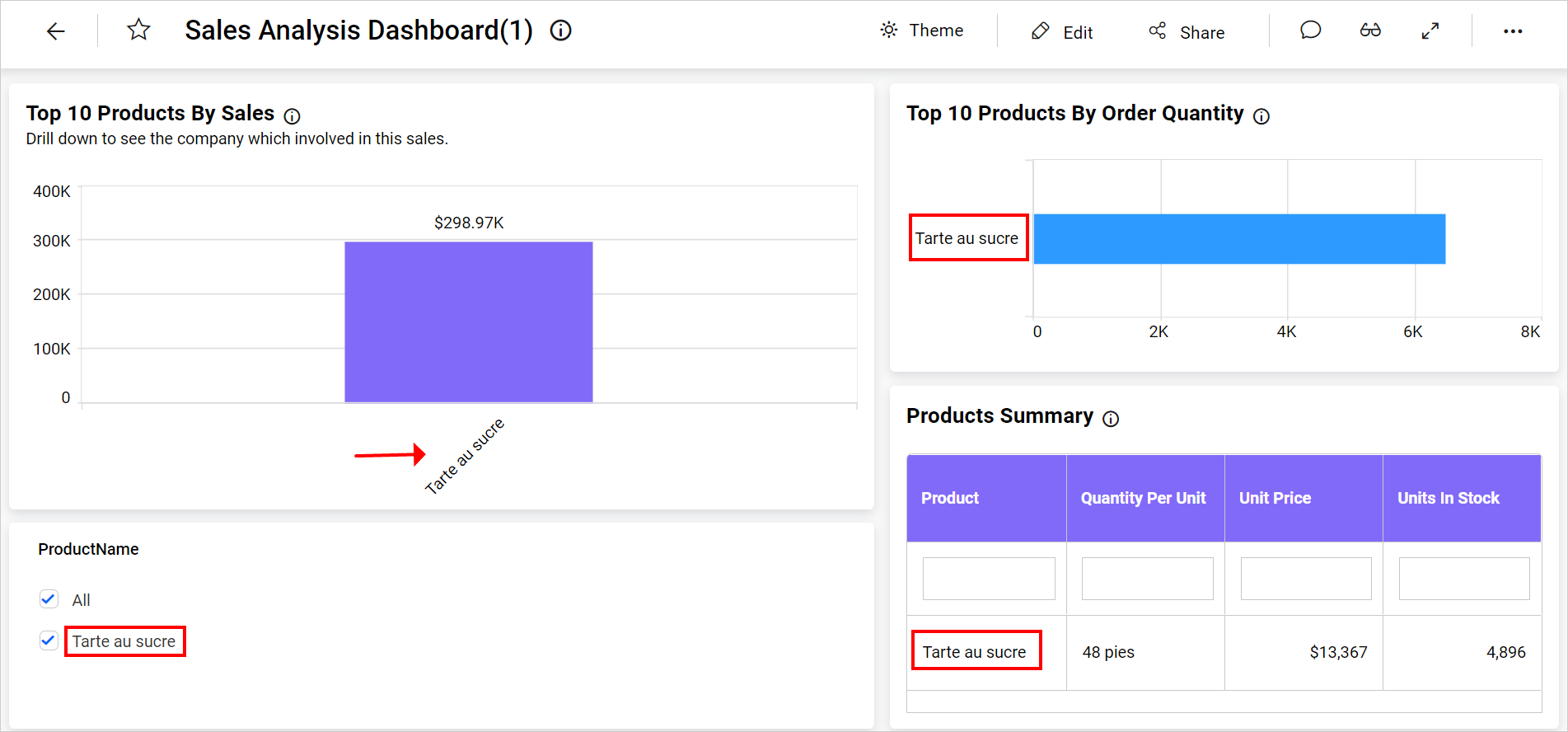
Preview the dashboard, then click the Link option from the widget. After opening the linked dashboard, it will appear as shown in the following image.